Appearance
Using the Pagelayer Site Builder
Spookhost includes the Pagelayer Site Builder Pro version for free, which allows you to create a website without any coding knowledge. You can use the drag-and-drop interface to add elements, customize layouts, and design your site visually.
Setting up Pagelayer Pro
- Make sure you have WordPress installed (see Installing WordPress for instructions), and SoftWP set up (see Free Premium/Pro Plugins for instructions).
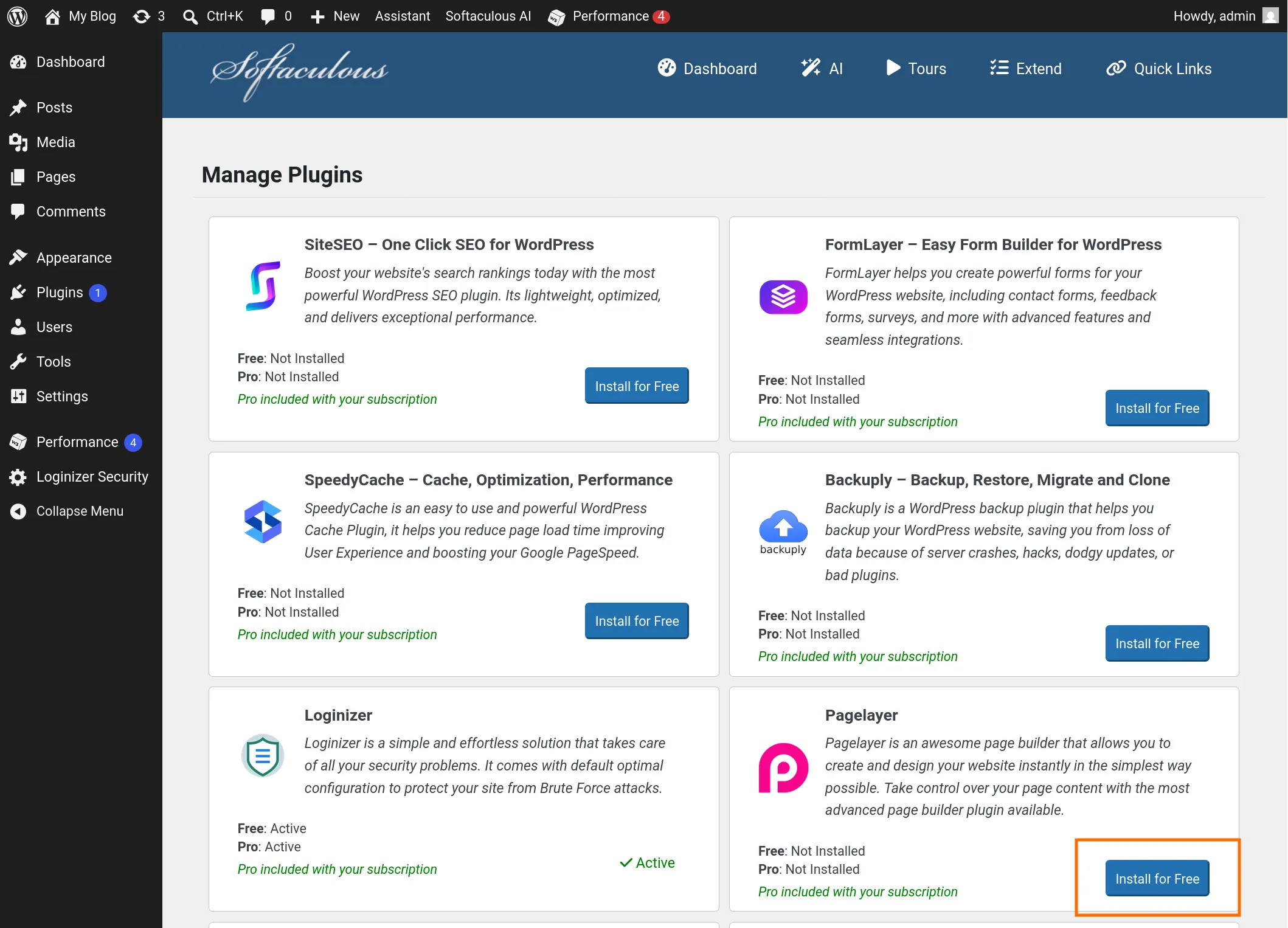
- Install Pagelayer Pro
Selecting a pre-made template
TIP
You do not need this if you want to create your own theme from scratch.
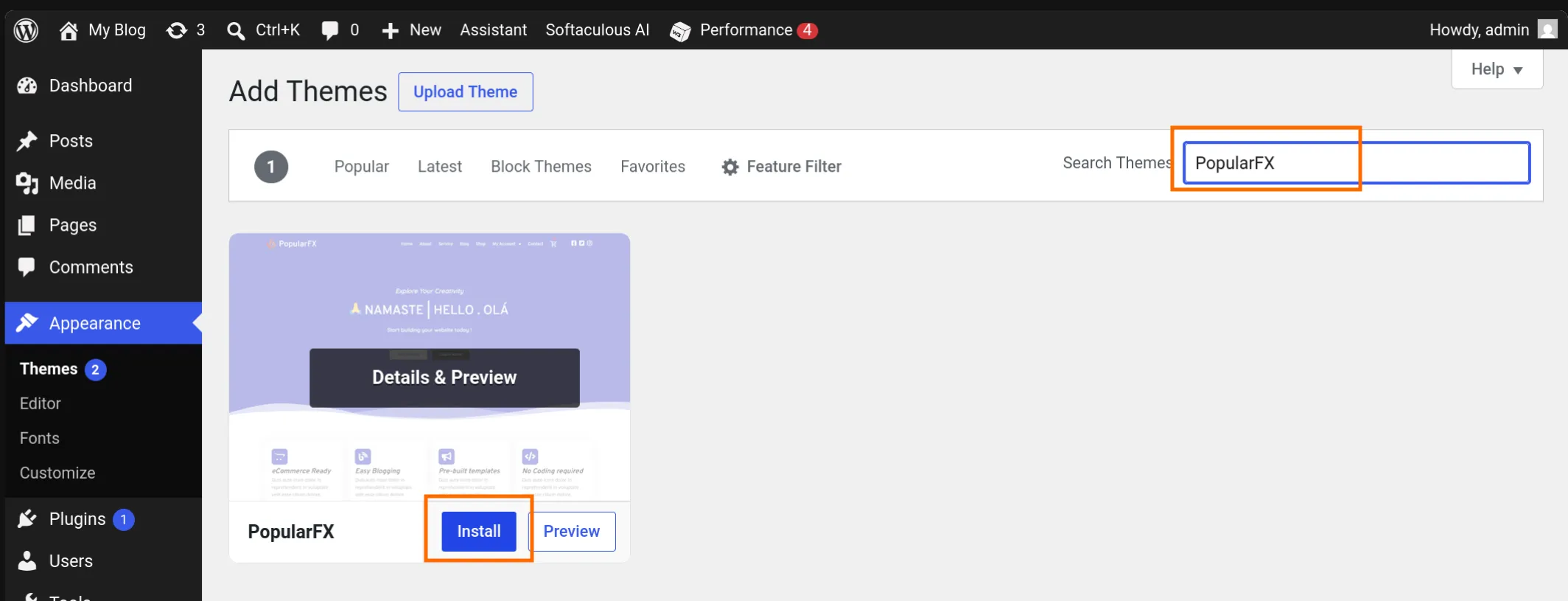
- Install the PopularFX Theme
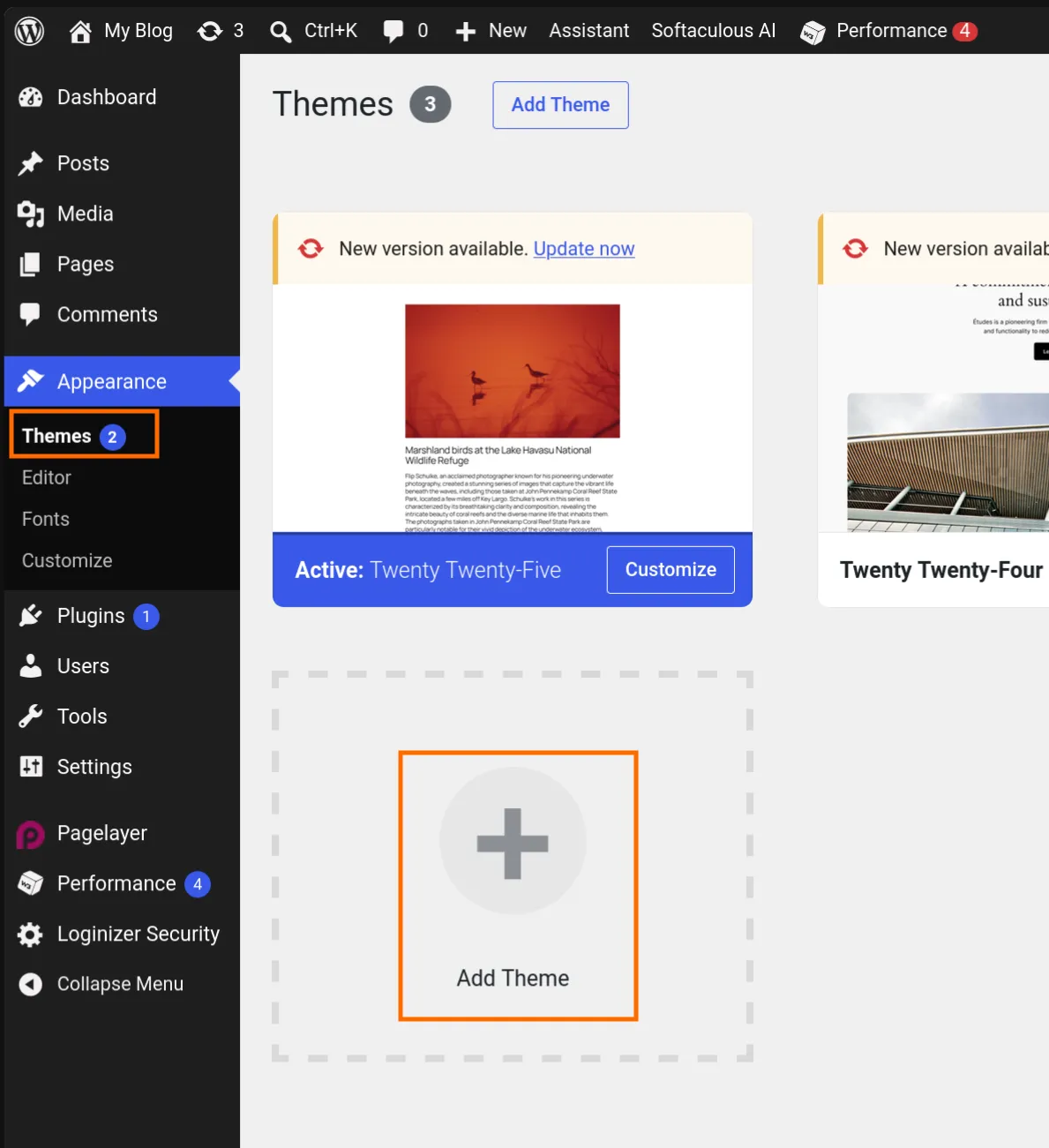
- Go to Appearance > Themes > Add Theme
- Install PopularFX Theme and Activate it
- Go to Appearance > Themes > Add Theme
- Install the PopularFX plugin by clicking here
- Upload the plugin zip file and activate it
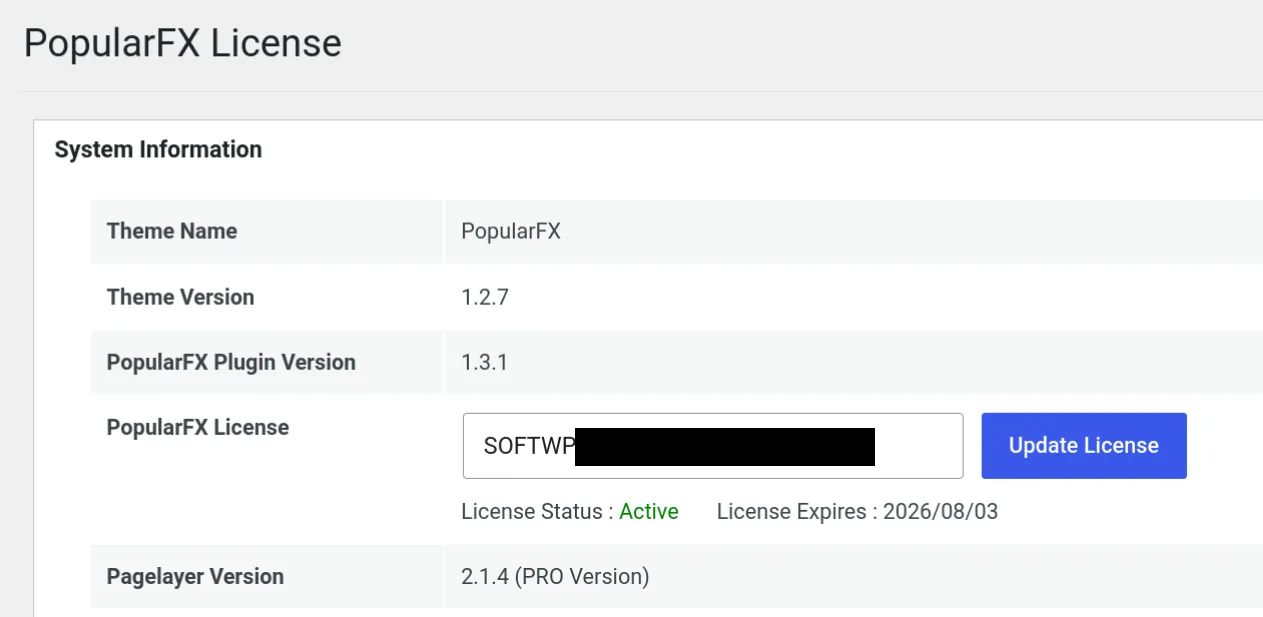
- Make sure the license is active
INFO
If the license is not active, simply copy and paste the license key from Pagelayer Plugin > License
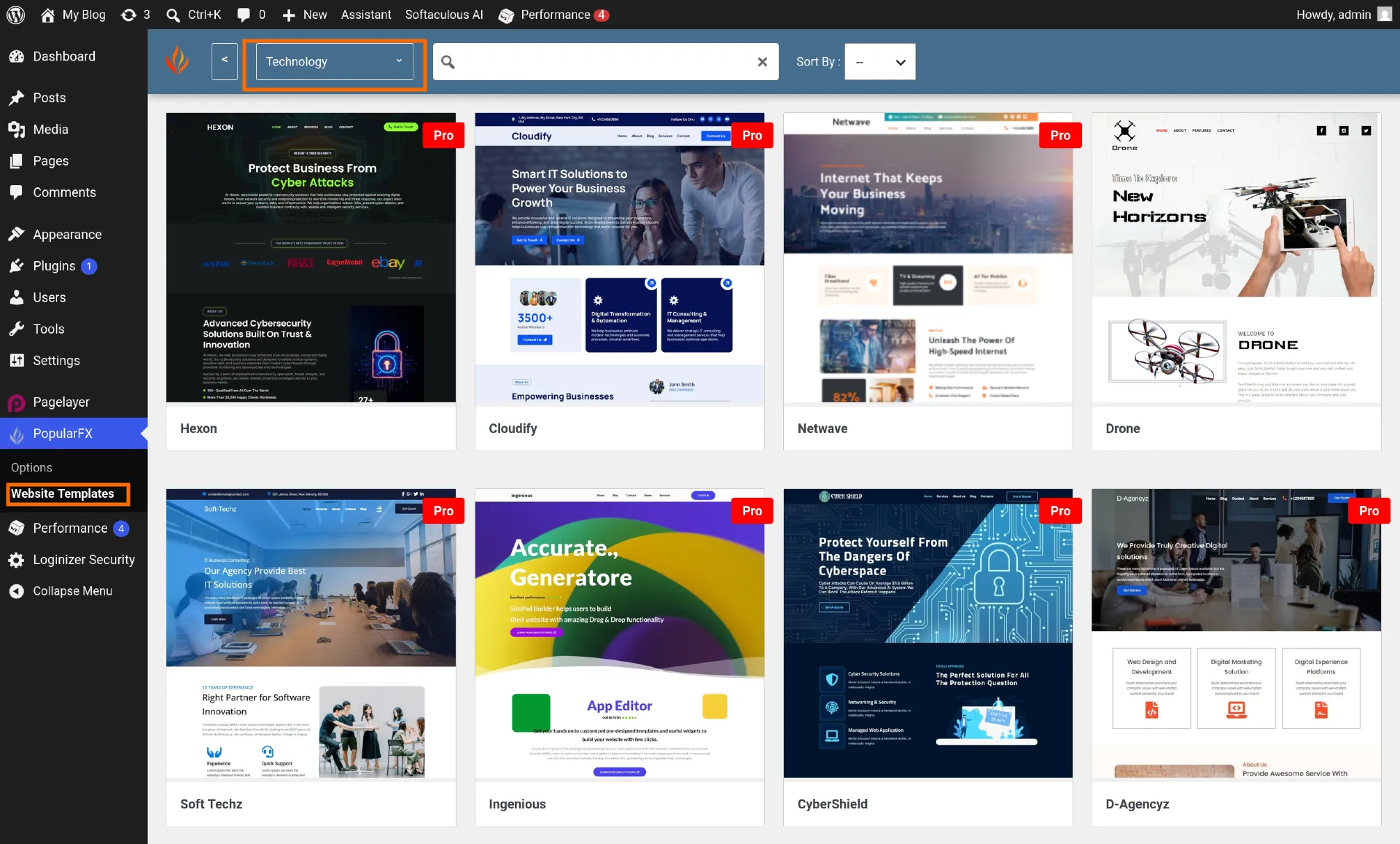
- Select a PopularFX Template
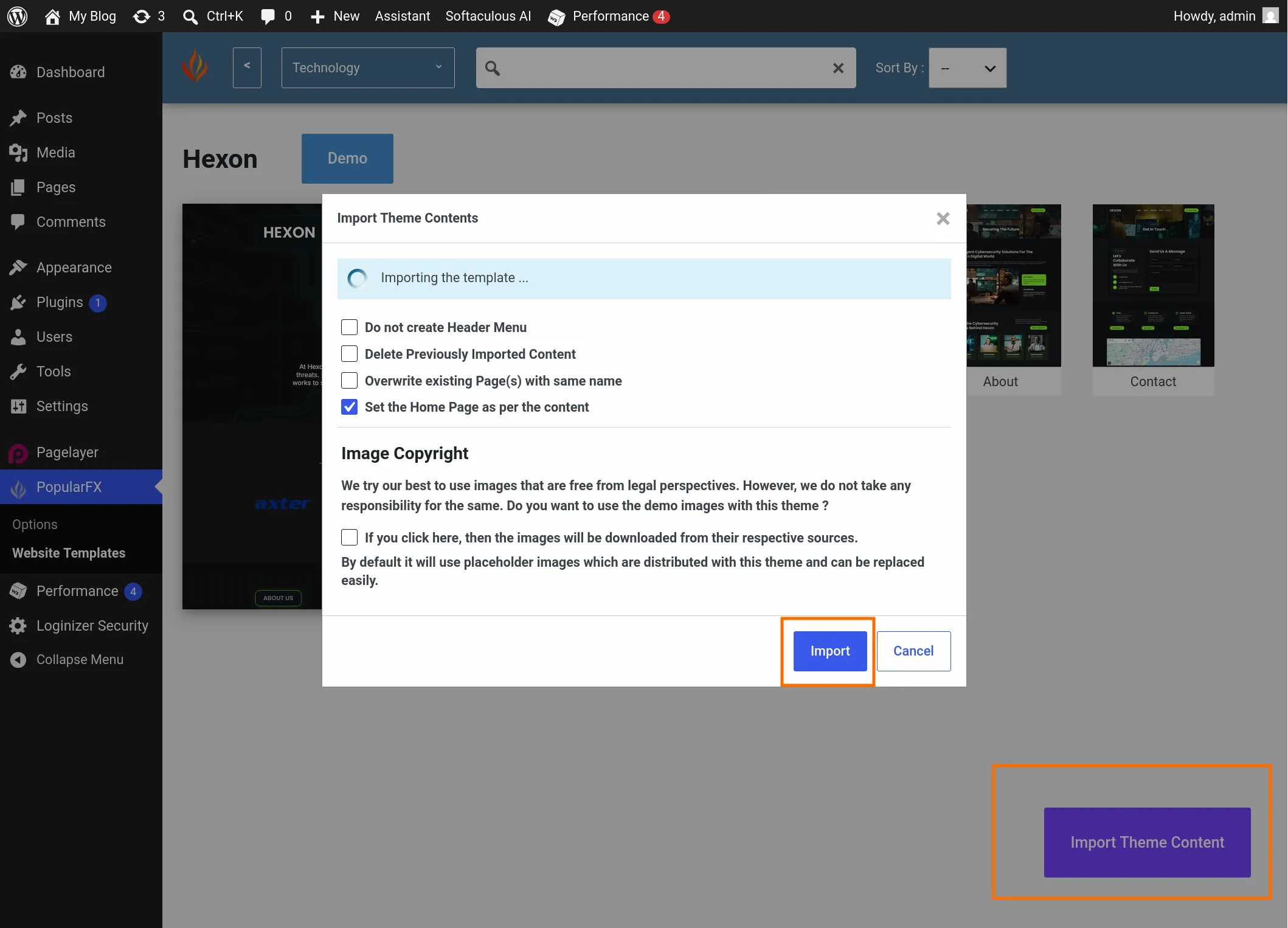
- Import Theme Content
INFO
We do not recommend enabling the "Image Copyright" option for your legal safety.
Creating a page
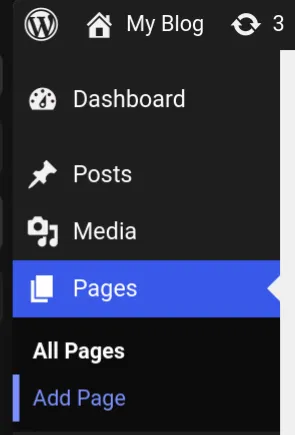
- Go to Pages > Add Page
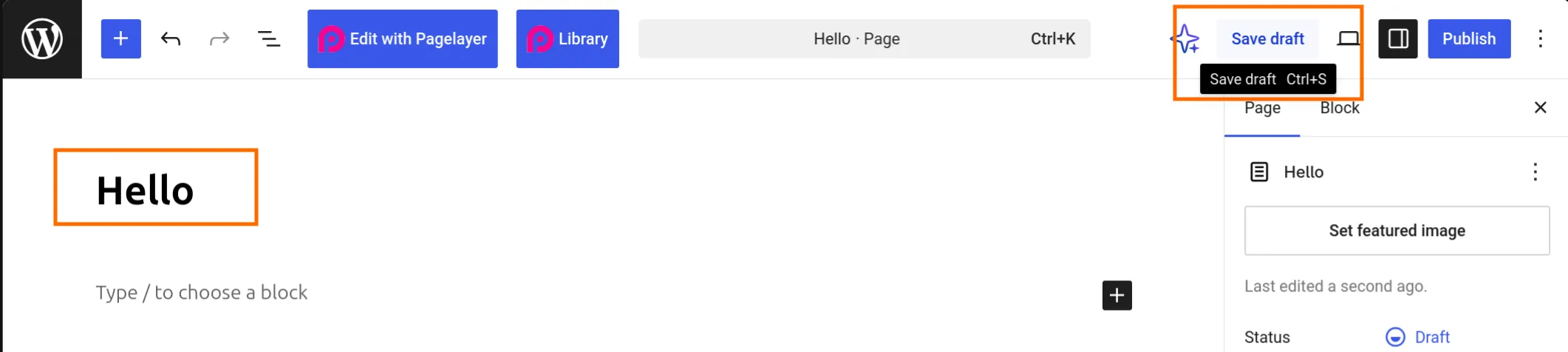
- Input the title and Save Draft
INFO
Make sure you save the page as a draft first before editing it with Pagelayer, otherwise Pagelayer will not be able to locate this page.
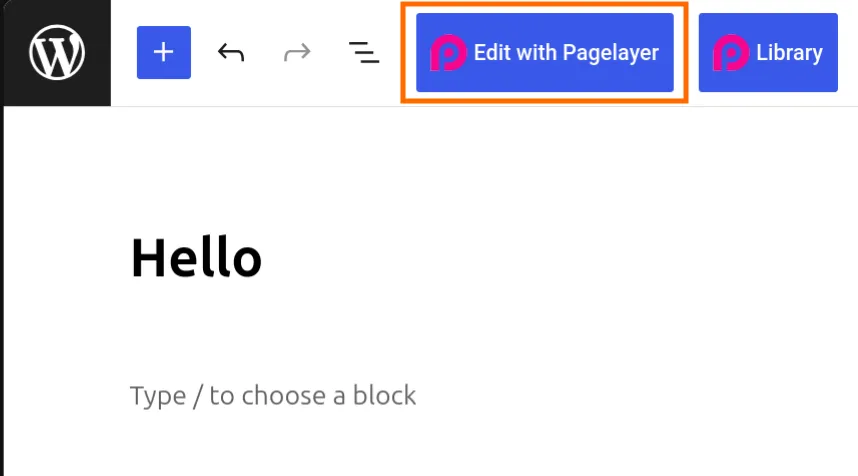
- Click "Edit with Pagelayer" to start editing the page
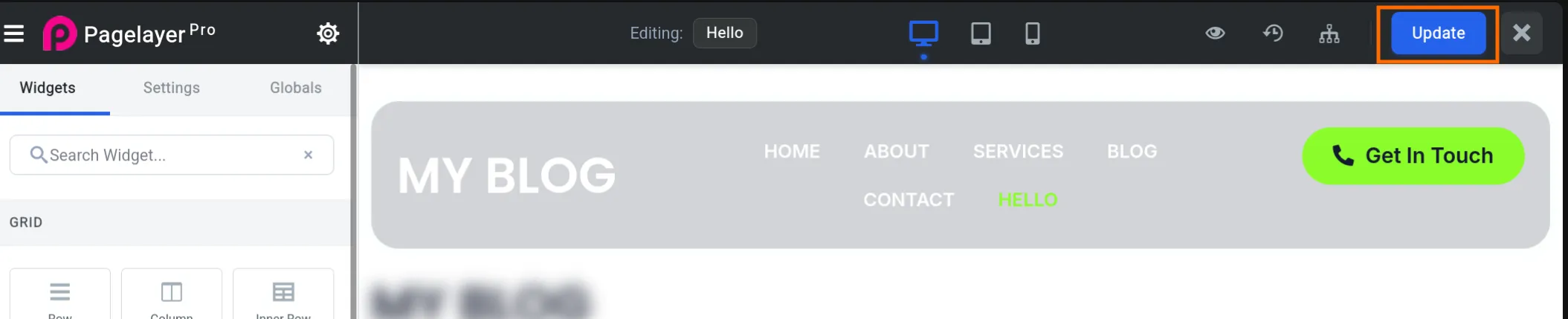
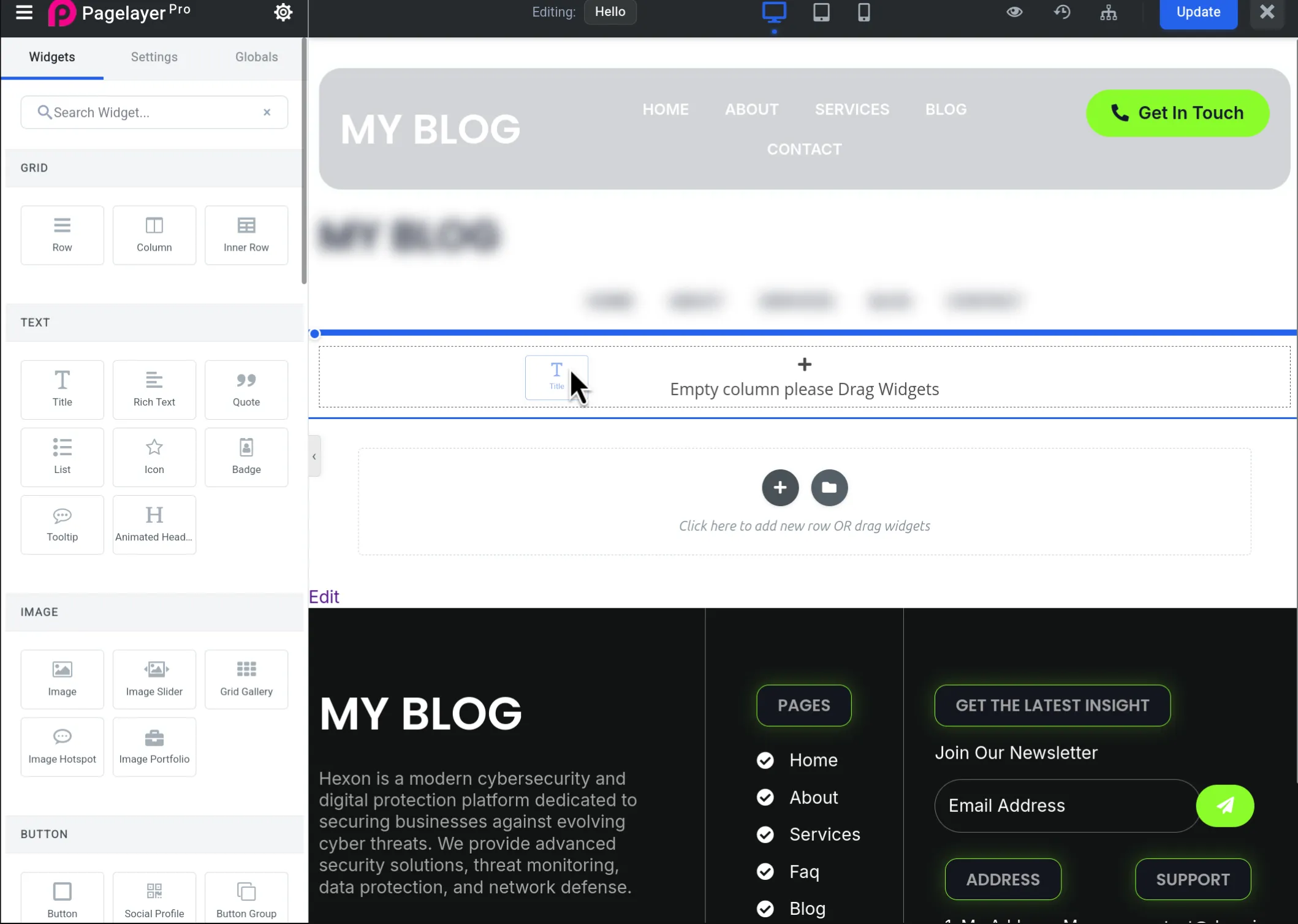
- Drag and drop widgets to create your page, and click "Update" when you are done
- Publish the page
- Click on "Edit" on your draft page

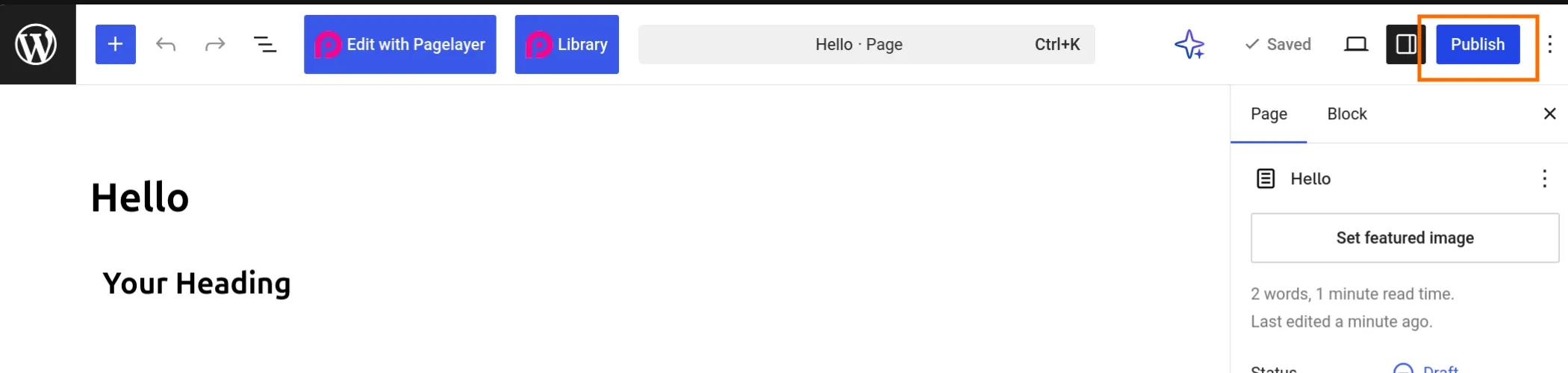
- Click "Publish" to publish the page
- Click on "Edit" on your draft page
Editing an existing page
- Go to Pages > All Pages
- Click "Edit using Pagelayer" on the page you want to edit

- Click "Update" when you are done