
Appearance
Installing WordPress
We recommend using Softaculous Installer to install WordPress
Login to your Control Panel
Select the “Softaculous Apps Installer” option
Choose Install WordPress
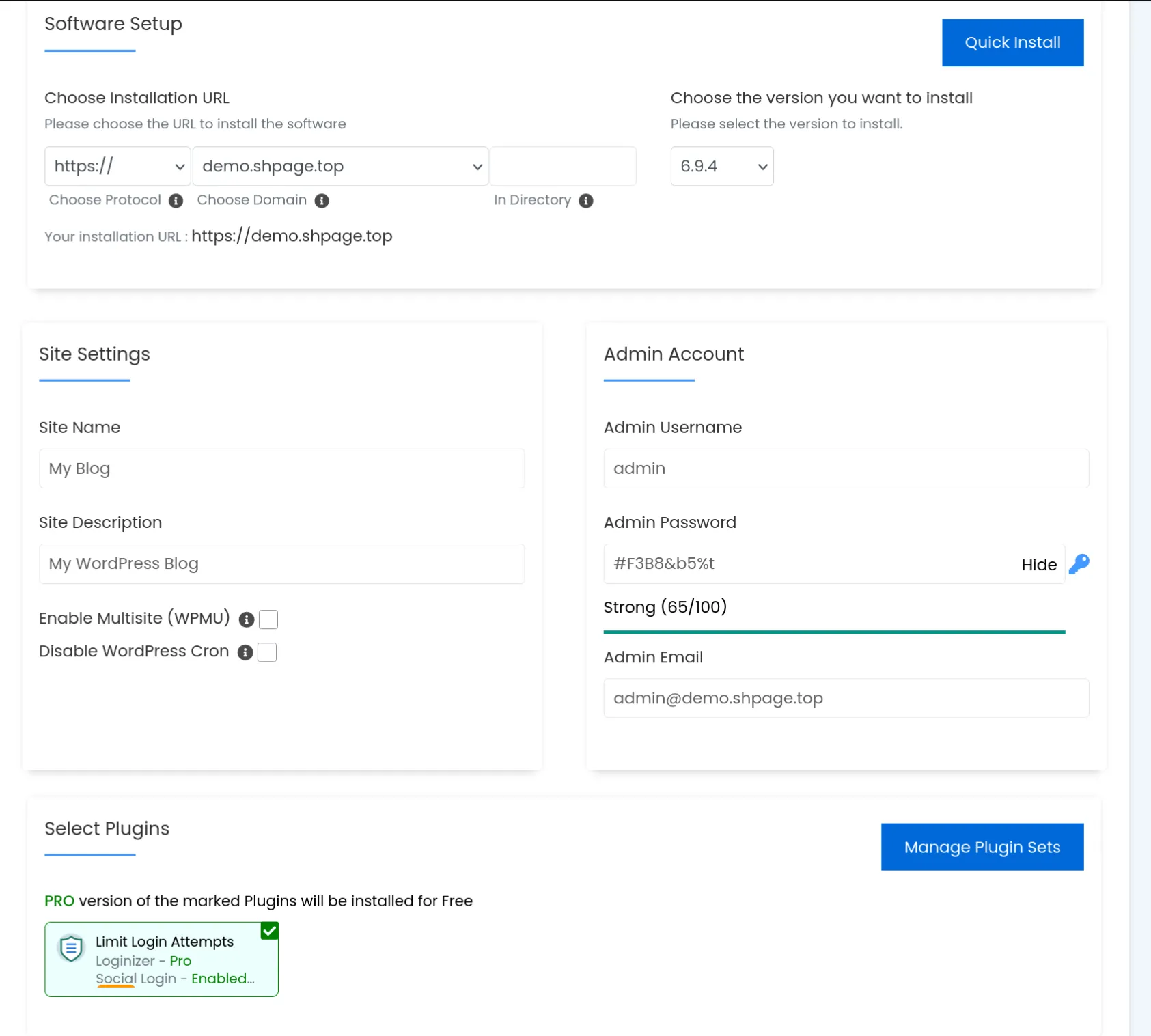
Choose your domain and fill in the required details.
TIP
We highly recommend you to install the Loginizer plugin as it grants you extra security features such as Brute Force Protection, 2FA TOTP, social logins, CAPTCHA, and more.
INFO
If you want to use other included premium plugins, you will need to install Loginizer first, even if you don’t plan to use Loginizer in the future.
WARNING
We do not recommend using WordPress Multi-site on Spookhost
Wait for the installation to finish
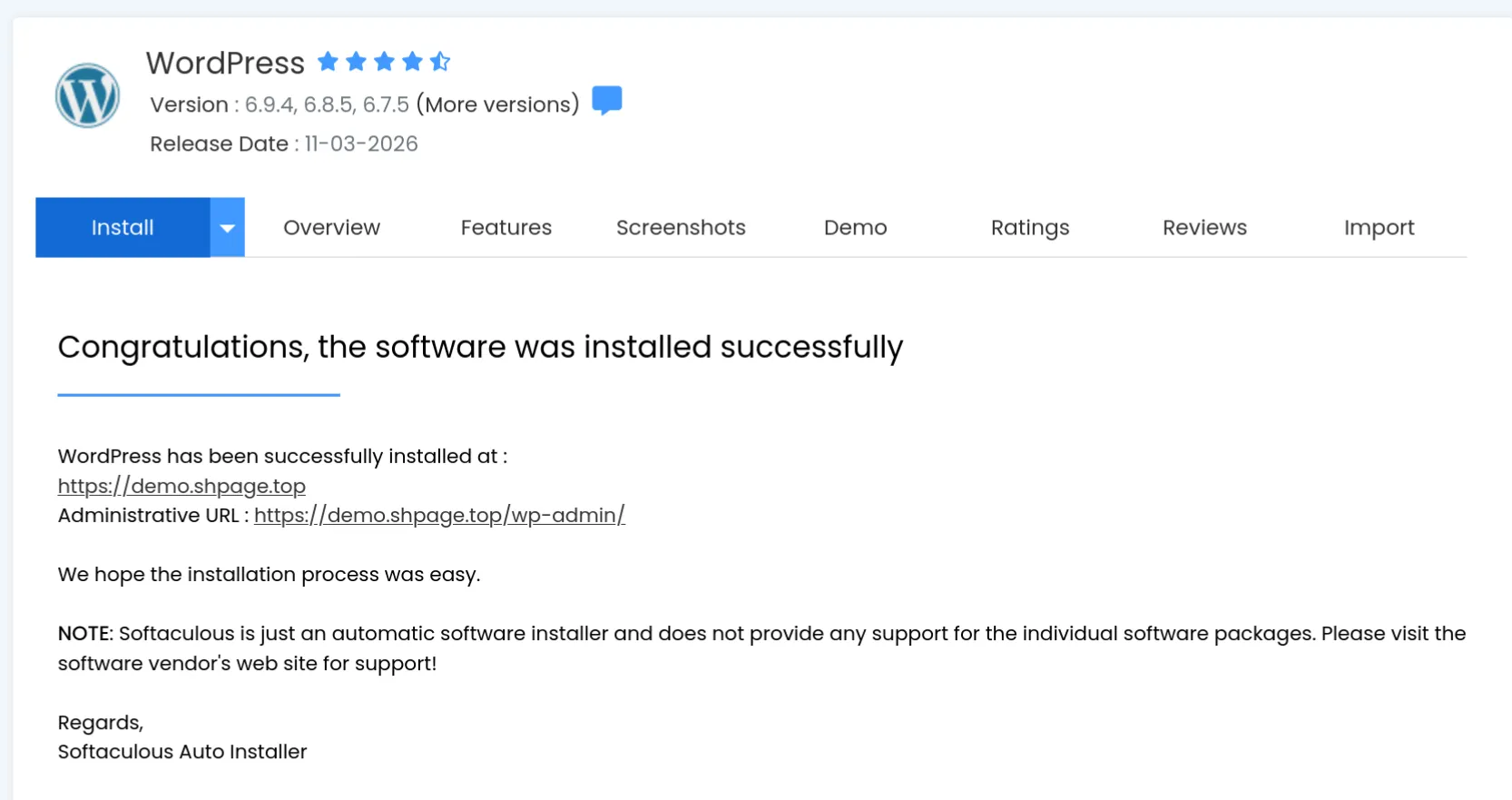
WordPress is successfully installed! You may click on the Administrative URL to access the WordPress admin panel.
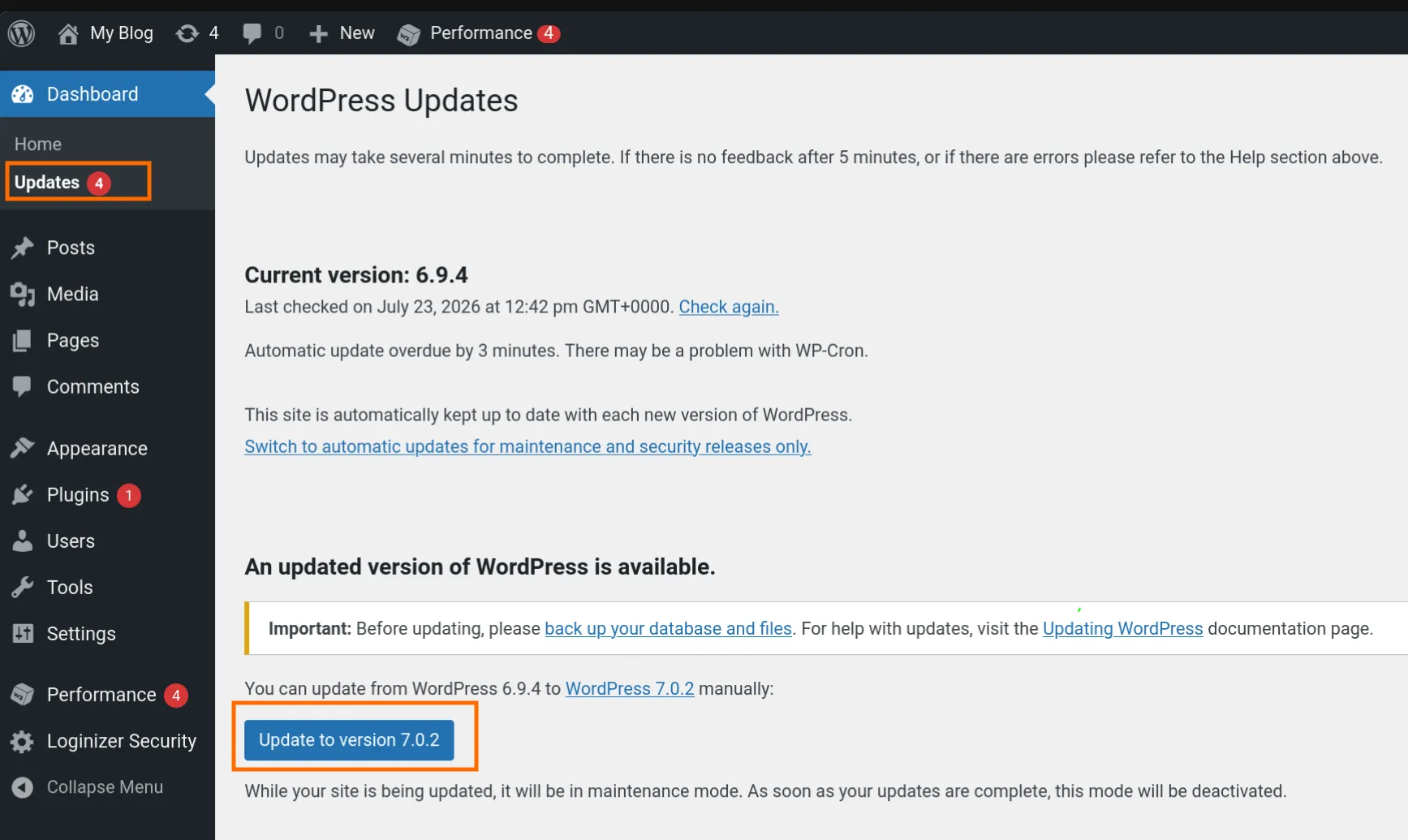
Install pending WordPress updates. Softaculous sometimes are not giving you the most updated version of WordPress, we can utilize the WordPress built-in easy updater to use the latest version.
WordPress installation is finished.